
Table of Contents
Amazon Plugin
Compatible with DokuWiki
hrun, ponder stibbons, binky, weatherwax, Elenor Of Tsort, Frusterick Manners, Greebo, !Hogfather
 Display product information fetched from Amazon for single products or lists
This extension has not been updated in over 2 years. It may no longer be maintained or supported and may have compatibility issues.
Similar to amazonlight, isbn
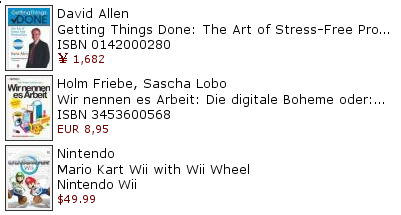
This plugin allows you to include information and cover art from Amazon into a wiki page. This is somewhat similar to the ISBN plugin but it uses Amazon's WebService API to fetch the data. You can adjust the plugin's output by changing the format function of the plugin.
Download and Installation
Search and install the plugin using the Extension Manager. Refer to Plugins on how to install plugins manually.
Changes
- Merge pull request #17 from dokuwiki-translate/lang_update_270_161478… (2021-03-04 09:12)
- translation update (2021-03-03 17:05)
- Version upped (2020-06-10 23:50)
- Merge pull request #16 from annda/hogfather (2020-06-10 10:37)
- Remove superfluous constant definitions (2020-06-09 16:22)
- Restore loading of XMLParser (2020-06-09 16:22)
- Use autoloading (2020-06-09 12:33)
- Merge pull request #14 from dokuwiki-translate/lang_update_501 (2017-08-27 11:27)
Usage
Usage is simple – just use the amazon tag providing an ASIN as shown below:
{{amazon>0142000280}}
If you want to link to a national Amazon, use the following syntax to access the German, UK, Japanese, French or Canadian Amazon site.
{{amazon>de:0142000280}}
{{amazon>uk:0142000280}}
{{amazon>jp:0142000280}}
{{amazon>fr:2749102448}}
{{amazon>ca:0142000280}}
{{amazon>de:382732730X}}
Wishlists or “ListMania” lists can be displayed using the wishlist or amazonlist keywords followed by the list id. Country support works the same as with single products above. Examples:
{{wishlist>de:11ACQWWKWOM3G}}
{{amazonlist>R2AD3IPI9YY0TO}}
 Amazon dropped the support for lists in their API, there's nothing I can do about it right now. Sorry. Lists are no longer supported by this plugin.
The default configuration options set in the config manager can be overridden by giving additional space separated keywords:
{{wishlist>de:11ACQWWKWOM3G price =0 90x90}}
{{amazon>en:0142000280 noprice =40 50x70}}
(Note that it is necessary to include the country code (en:, de:, etc…) in the link or the options will not take effect (and in fact you will get an error))
The following keywords can be used:
| widthxheight | the size of the shown image(s) |
| =number | limit outputs to this number of characters, set to 0 for no limit |
| noprice | don't show product prices |
| price | show product prices |
| nopurchased | exclude already purchased items |
| purchased | include already purchased items |
| sortprice | sort items ordered by price, cheapest on top |
| sortpopularity | sort items by personal popularity as provided by list owner |
| sortadded | sort items by the date they were added, newest on top |
Configuration
Everything is configurable through the config manager.
You need to sign up for a free Amazon AWS Developer account to obtain the needed Access Keys. After got the Access Key ID and Secret Access Key, you may need to register Product Advertising API at here.
You can specify the width and height of images and if you want to display prices here. You can set up Amazon Partner IDs for all supported shops. If you feel generous, leave in the IDs of the plugin author.
Note: It is recommended to enable the fetchsize option to get correct rescaling for the external images.
Some more info
Ben Pollinger created a button that could be used with this plugin in the toolbar 
